Do you have questions about the recent buoy debacle on the Rio Grande? Our reporting has you covered, plus an important new hire at The Border Chronicle, and our new project Wall Watch.
As floodwaters swept hundreds of one-ton border buoys downstream, international bridges closed, commerce slowed, and officials struggled to get answers from DHS about a project advancing despite local opposition, environmental concerns, and treaty questions.
Hundreds of massive orange buoys staged for a controversial DHS floating barrier project broke free near Eagle Pass and are now drifting toward Laredo, threatening bridges, commerce, drinking water supplies and downstream communities.
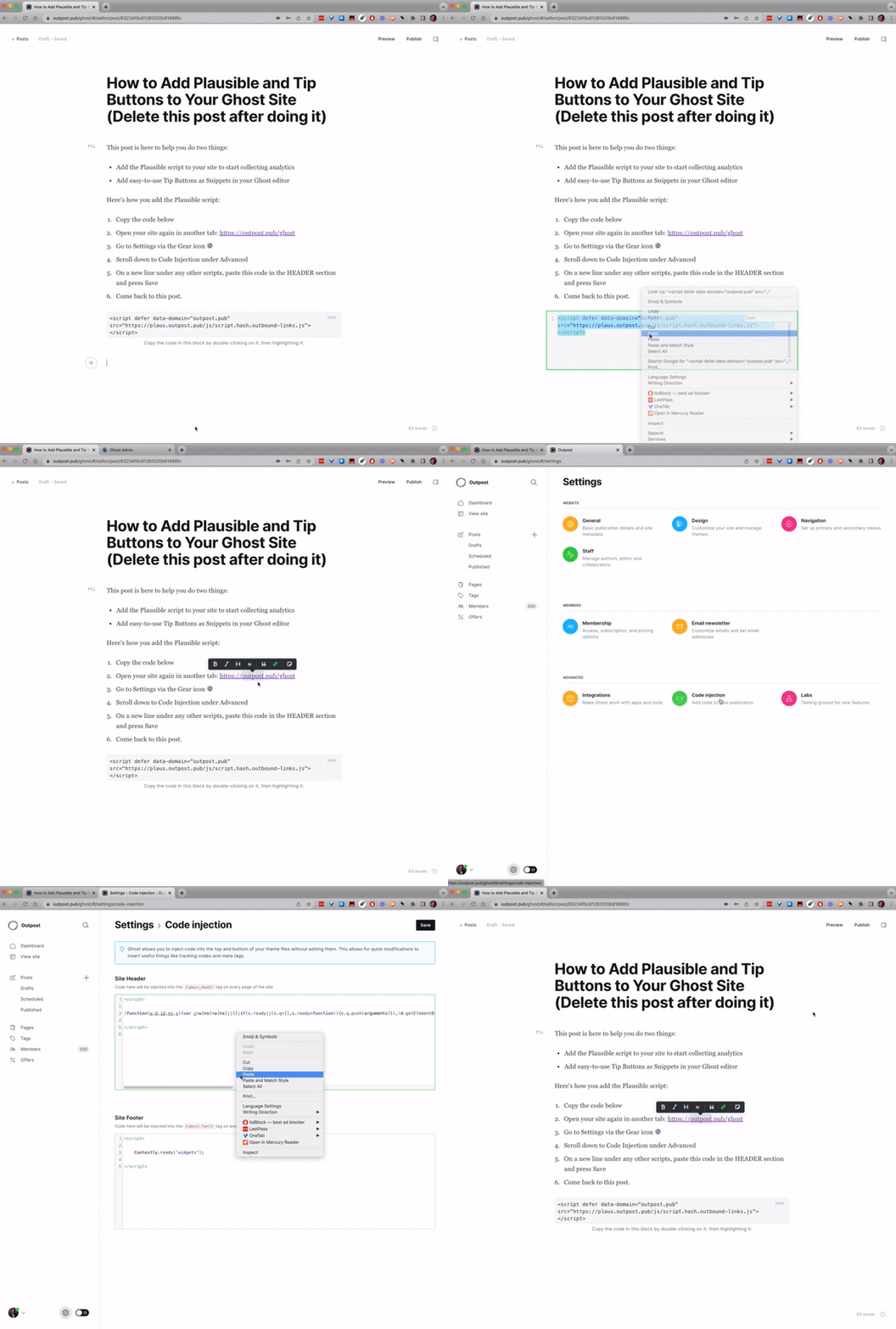
In the HEADER section, start a new line under any other scripts and paste this code. Press Save in the top right corner
Come back to this page
That looks like this:
That's it for Plausible. You are all set up. As soon as someone visits your site, you'll be able to see Plausible Analytics dashboard inside your Outpost Control Center.
Adding Tip Jar Buttons to Your Ghost Editor during Outpost Setup
This will help you add 3 tip jar buttons to your Ghost editor:
1) You can also add a tip button using Ghost's built-in button. This shows the tip button to all readers in your emails and on your site.
We just made one for you and now all you have to do is save it.
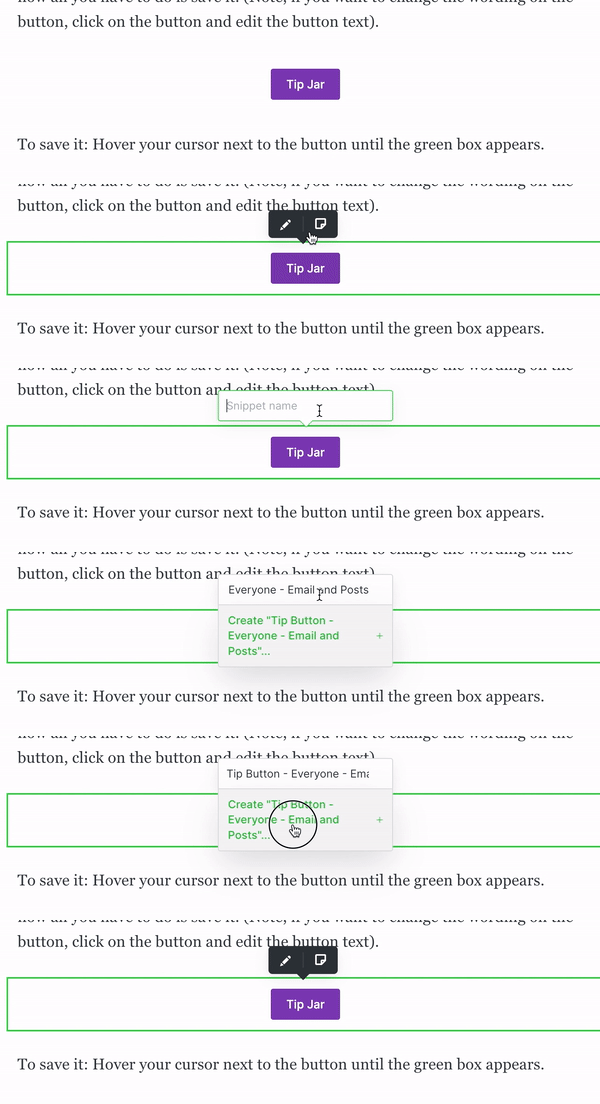
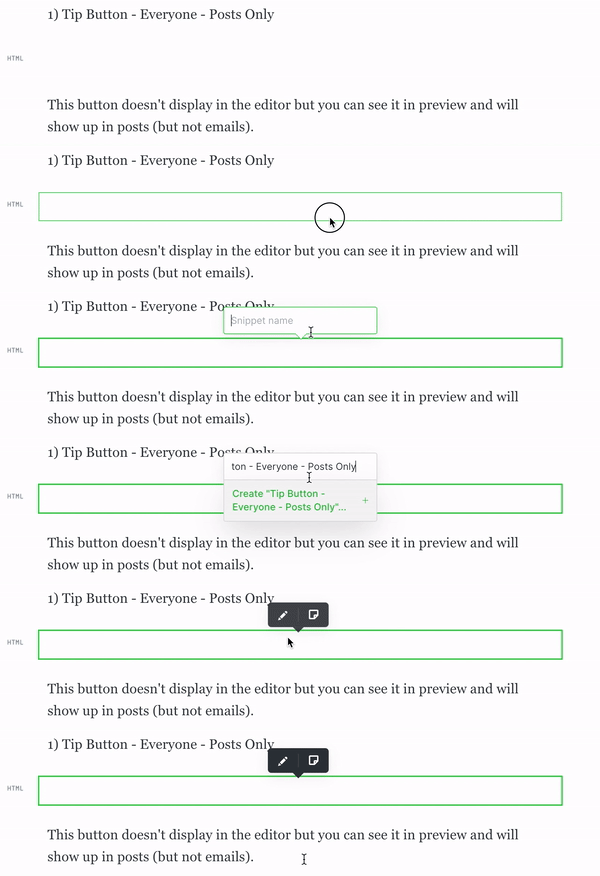
To save it: Hover your cursor next to the button until the green box appears.
Click the box (not the button) once.
Icons will pop up. Click the right one that looks like a piece of paper, and type in (or paste): Tip Button - Everyone - Email and Posts. Click the green text to save it.
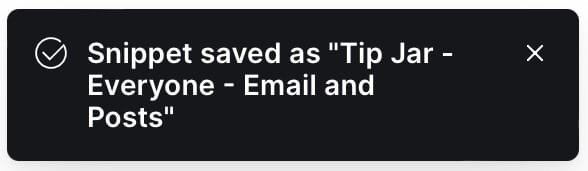
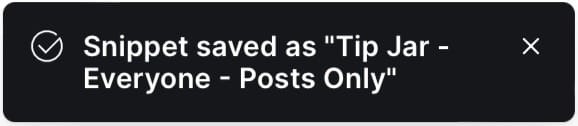
You should see a confirmation that your snippet is saved pop up in the bottom left corner of the screen, it should look like this:
This saves it as a Snippet in your Ghost editor. Click the big + button in the editor and scroll down to find the name to reuse it.
Like this:
Now do the same thing with these buttons, which can be used to limit who sees your Tip Jar on your posts.
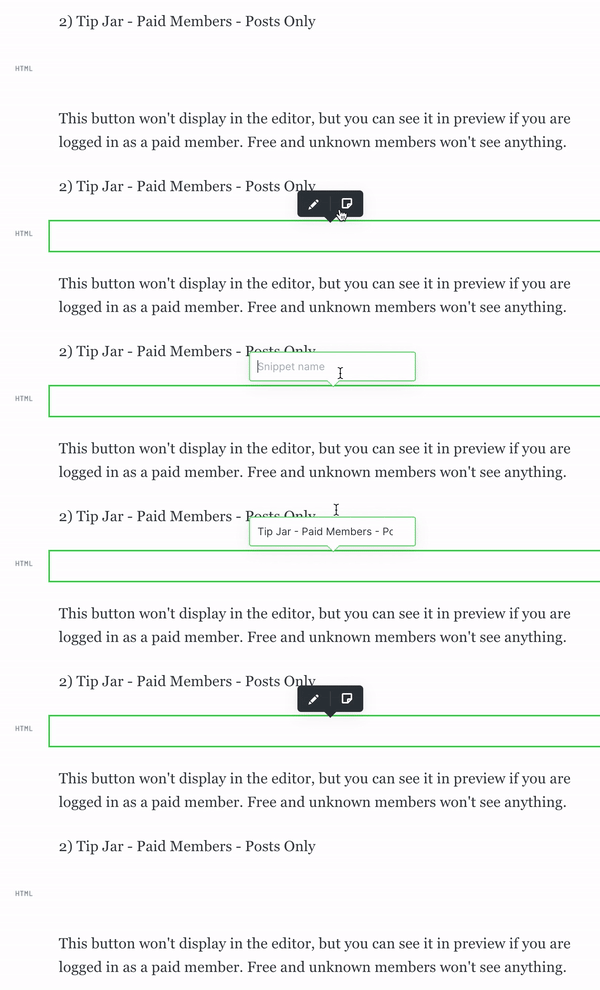
This button won't display in the editor, but you can see it in preview if you are logged in as a paid member. Free and unknown members won't see anything on your site. This button doesn't show up in emails.
Save this one as Tip Jar - Paid Members - Posts Only
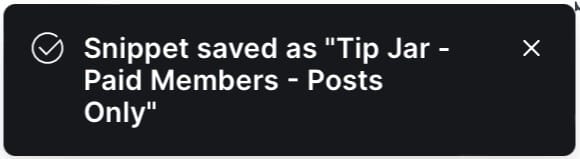
You should see a confirmation that your snippet is saved pop up in the bottom left corner of the screen, it should look like this:
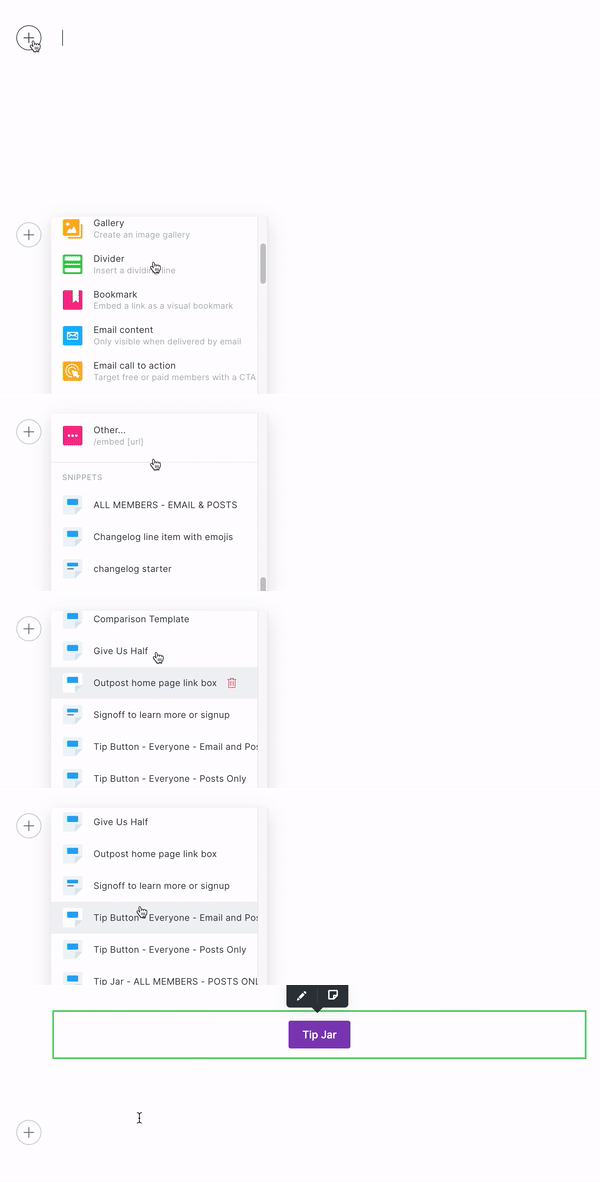
Now to add any of them to a post, simply start a new line in your post, click the Ghost (+) button, scroll all the way down to Snippets and choose the one you want to insert.
Like so:
You are now done with this page, and feel free to delete it whenever you like and return to the Outpost Control Center to work on the Autoresponder.
Subscribe to The Border Chronicle
Independent news, culture and context from the U.S.-Mexico border.